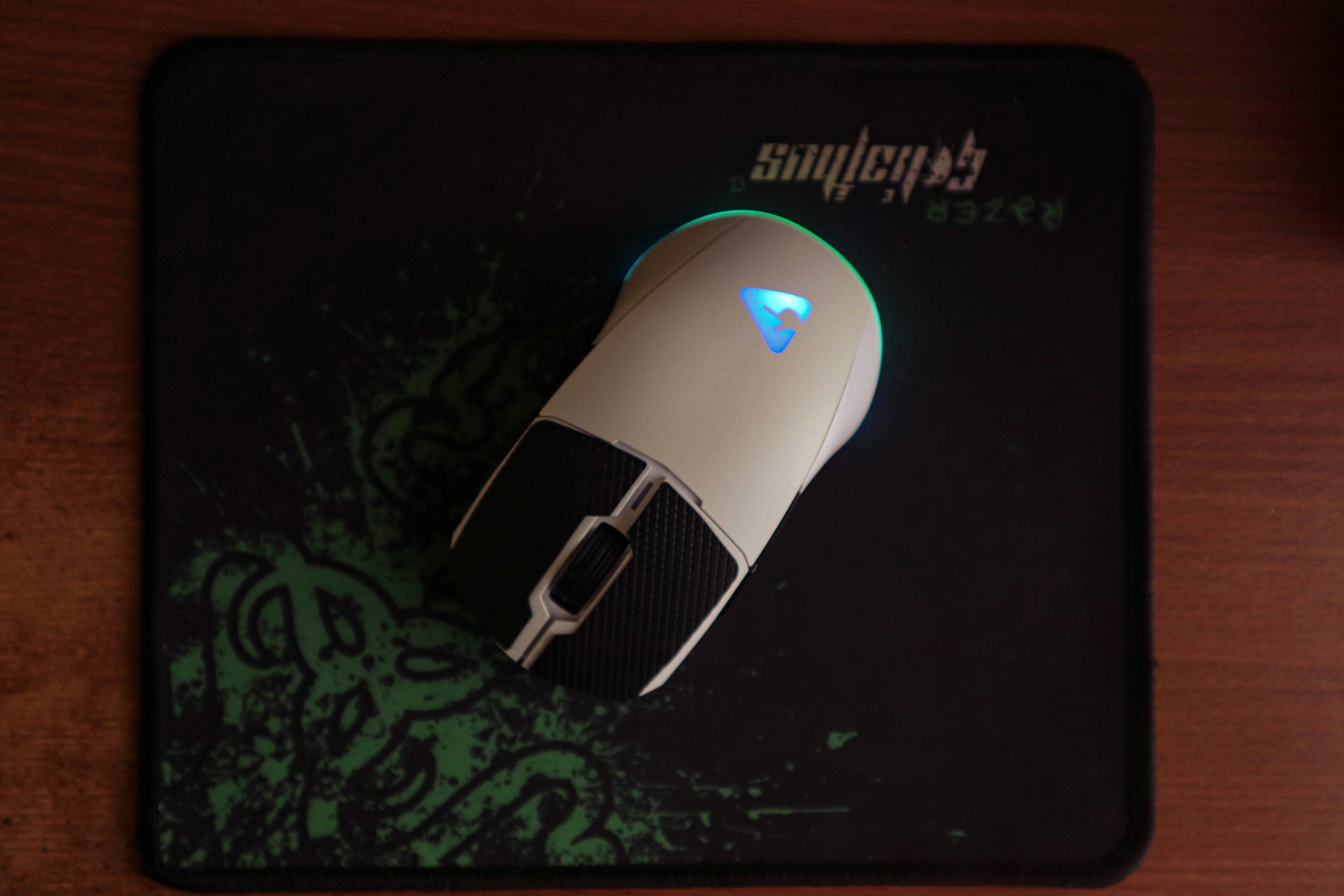
Addressing Gaming Mouse Sensitivity Problems
Experiencing issues with your gaming mouse's sensitivity can be frustrating, especially during crucial gaming moments. Whether it's too fast, too slow, or inconsistent, the right adjustments can significantly enhance your gameplay. Here’s a detailed guide on how to troubleshoot and fix sensitivity problems with your gaming mouse.
Understanding Mouse Sensitivity
Mouse sensitivity, or DPI (dots per inch), determines how much the cursor moves on screen in relation to the mouse’s physical movement. Higher DPI means the cursor moves farther with less physical movement, which is often preferred in gaming for quick reactions.
Common Sensitivity Issues
- Inconsistent Sensitivity: The cursor does not consistently match the speed of mouse movements.
- Too High or Too Low Sensitivity: Difficulty in aiming accurately in games.
- Cursor Lag: Delay between mouse movement and cursor response on the screen.
Step-by-Step Troubleshooting
Step 1: Check Your Mouse Settings
- Adjust DPI Settings: Most gaming mice come with adjustable DPI settings. Experiment with different DPI levels to find one that suits your gaming style.
- Software Settings: Use your mouse’s software to fine-tune sensitivity settings. Brands like Logitech, Razer, and Corsair offer dedicated software for more precise adjustments.
Step 2: Update or Reinstall Drivers
Outdated or corrupted drivers can cause sensitivity issues.
- Update Drivers: Visit the manufacturer’s website, find your model, and download the latest drivers.
- Reinstall Drivers: Uninstall the current driver from the Device Manager, reboot your PC, and install a fresh driver.
Step 3: Check the Mouse Surface
- Surface Type: Use a proper mouse pad; different textures can affect mouse tracking.
- Clean the Mouse and Pad: Dust and debris can hinder sensor performance. Clean your mouse and pad regularly.
Step 4: Adjust In-Game Settings
- In-Game Sensitivity: Most games have their own sensitivity settings. Adjust these in conjunction with your mouse’s DPI for optimal performance.
- Pointer Precision: Disable “Enhance pointer precision” in Windows Mouse Settings, as it can cause inconsistent movement.
Step 5: Test Your Mouse on Another Computer
This can help determine if the issue is with the mouse or your computer.
When to Seek Professional Help
If you’ve tried all the above steps and still face issues, it might be time to consult with an expert. At Mavyn, you can chat with our AI, Mavyn GPT, or connect directly with a human expert who specializes in gaming hardware to get personalized assistance.
Conclusion
By following these steps, you should be able to resolve most sensitivity issues with your gaming mouse. Remember, the right settings can vary widely among different users and games, so don’t hesitate to experiment until you find what works best for you.
For further assistance, remember that Mavyn is here to help. Whether through AI-guided support or direct expert advice, we ensure your gaming setup is optimized for the best performance.