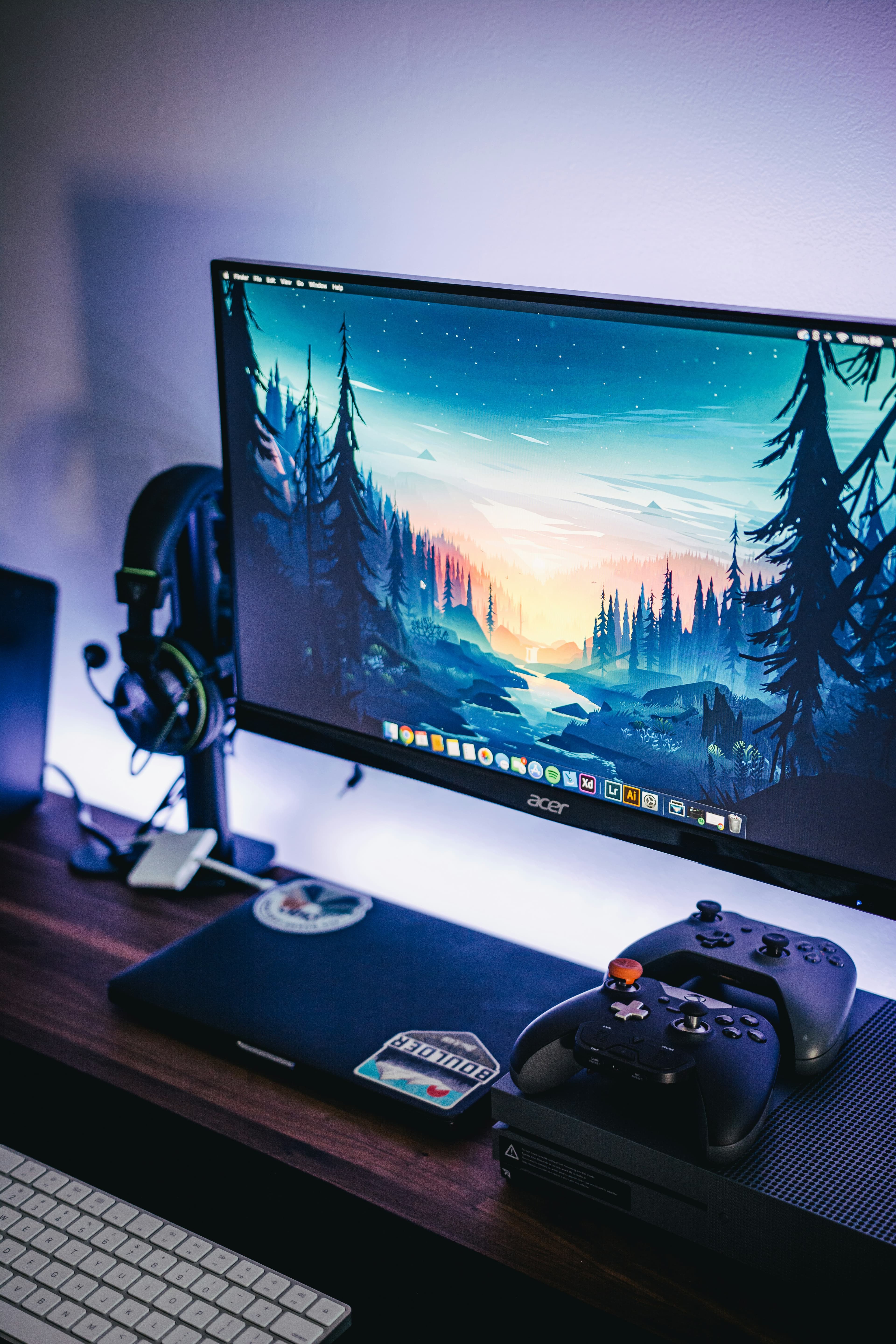
How to Fix Common Gaming Monitor Glitches
Experiencing glitches on your gaming monitor can be frustrating, especially during an intense gaming session. These glitches can range from flickering screens to distorted images or even connectivity issues. Fortunately, Mavyn is here to help. Whether you choose to interact with Mavyn GPT or connect with one of our human experts, resolving these issues can be straightforward. Here’s a detailed guide on how to troubleshoot and fix common gaming monitor glitches.
1. Check Your Connection Cables
Often, the simplest solutions are the most overlooked. Loose or damaged cables can cause a variety of monitor issues.
- Inspect all cables for any signs of damage. Look for frayed ends or loose connections.
- Ensure all cables are securely connected. Sometimes, simply unplugging and replugging the cables can solve the issue.
- Try different cables. A faulty cable might be the culprit. Testing with another cable can help you identify the issue.
2. Update or Reinstall Your Graphics Drivers
Outdated or corrupted graphics drivers can lead to monitor glitches.
- Check for updates. Visit the manufacturer’s website of your graphics card for the latest driver updates.
- Reinstall your drivers. Sometimes, a fresh installation of drivers can resolve glitch issues.
# Example of how to update graphics drivers on Windows
Device Manager > Display adapters > Right-click on graphics card > Update driver
3. Adjust the Refresh Rate
An incorrect refresh rate can cause flickering. Adjusting it might resolve the issue.
- Right-click on your desktop and select 'Display settings'.
- Scroll down and click on 'Advanced display settings'.
- From here, you can adjust the refresh rate to match your monitor’s specifications.
4. Factory Reset Your Monitor
If all else fails, a factory reset can be a last resort to clear any settings that might be causing issues.
- Access the monitor’s on-screen menu using the buttons on the monitor.
- Look for an option like ‘Reset’, ‘Factory Reset’, or ‘Default Settings’ and select it.
5. Consult with Mavyn Experts
If you’ve tried all the above steps and still face issues, it might be time to consult with an expert. Mavyn offers both AI and human expert assistance to delve deeper into the problem.
- Chat with Mavyn GPT: For quick troubleshooting tips.
- Connect with a human expert: For more complex issues and personalized assistance.
Conclusion
Monitor glitches can be a nuisance, but with the right approach, they are usually fixable. By following these steps, you can often resolve common issues quickly. If you need further assistance, remember that Mavyn is here to help with both AI and human expert advice tailored to your specific situation.
Remember, whether it’s a simple cable check or a more in-depth driver update, taking it step by step is the key to getting your gaming setup back to its best performance.