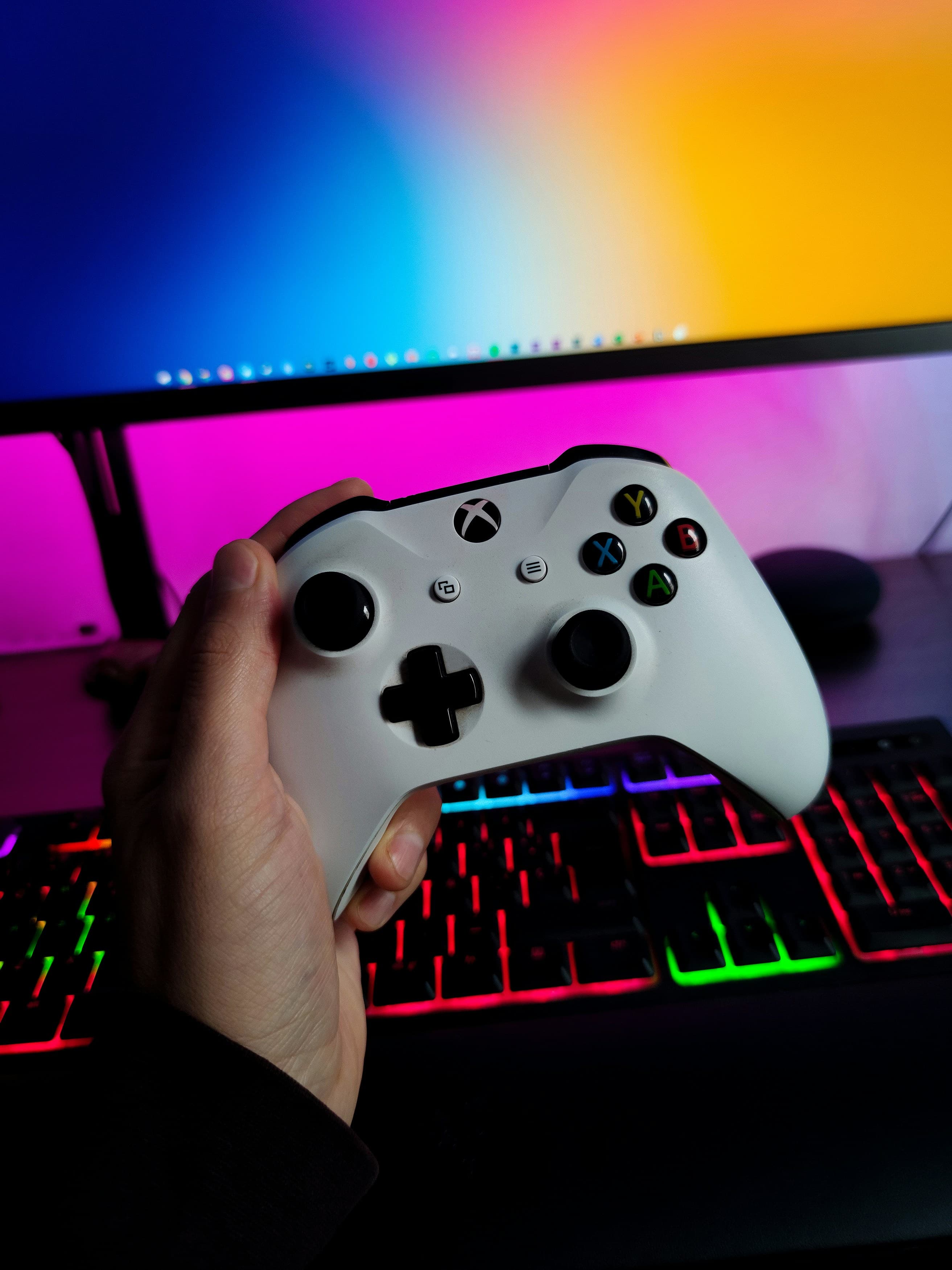
Fixing Xbox Controller Connectivity Issues
Experiencing connectivity issues with your Xbox controller can be frustrating, especially when you're all set to play your favorite game. Fortunately, most problems related to Xbox controller connectivity can be resolved through some straightforward troubleshooting steps. In this article, we'll guide you through several methods to get your controller back in action quickly.
Check the Batteries
One of the most common reasons for Xbox controller connectivity issues is weak or depleted batteries.
- Replace the batteries: Use a fresh pair of AA batteries and ensure they are inserted correctly according to the polarity symbols (+/-) inside the battery compartment.
- Rechargeable Battery Pack: If you use a rechargeable pack, make sure it is fully charged. Connect it to your Xbox via a USB cable to charge it directly.
Re-sync the Controller
Sometimes, simply re-syncing the controller with your Xbox console can resolve connectivity issues.
- Power off the controller and console: Turn both your controller and console off completely.
- Turn on the Xbox console: Press the Xbox button on the console to turn it on.
- Sync the controller: Press and hold the sync button on the top of the controller until the Xbox button starts flashing. Then, press the sync button on the console. Wait for the Xbox button on the controller to stay lit, indicating a successful sync.
Update Controller Firmware
Outdated firmware can cause connectivity and performance issues.
- Connect the controller to the Xbox: Use a USB cable to connect the controller to the Xbox console.
- Navigate to Devices & connections: Go to 'Settings' > 'Devices & connections' > 'Accessories'.
- Update the firmware: Select the controller and then choose '...'. If an update is available, select 'Firmware version' and follow the prompts to install the update.
Shop Xbox Consoles, Games and Accessories Now
Interference and Range Issues
Wireless interference and range limitations can affect your controller's connectivity.
- Reduce interference: Move away from microwaves, wireless routers, or other electronics that might cause interference.
- Stay within range: Ensure you are within the typical range of 19-28 feet (6-9 meters) from your console.
Hard Reset Your Xbox Console
If other methods fail, a hard reset might be necessary.
- Hold the power button: Press and hold the power button on the front of the Xbox console for about 10 seconds until it turns off completely.
- Disconnect the power cable: Unplug the power cable from the back of the Xbox for a few minutes.
- Reconnect and restart: Plug the power cable back in and turn on the Xbox console by pressing the Xbox button.
When to Seek Professional Help
If you've tried all the above steps and your Xbox controller still fails to connect, it might be time to consult with a professional. At Mavyn, you can chat with our AI, Mavyn GPT, or connect directly with a human expert who specializes in gaming hardware. They can provide you with personalized assistance and advanced troubleshooting steps.
Remember, connectivity issues can often be resolved at home, but sometimes professional insight is necessary to get back to your gaming as quickly as possible.
For more information or to get help with any other tech-related issues, visit Mavyn and explore our range of AI and human expert services designed to provide you with the answers you need.