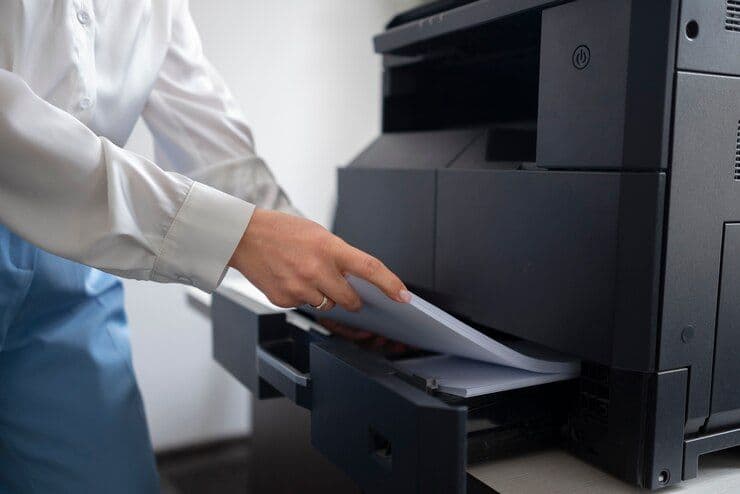
Top Solutions for Your Persistent Printer Issues
Printers, despite being essential in both home and office settings, can sometimes be a source of frustration due to various issues that can arise. Whether it's a paper jam, connectivity issues, or poor print quality, these problems can significantly disrupt your workflow. Fortunately, many of these issues can be resolved with some troubleshooting. Here are top solutions for the most common and persistent printer problems.
1. Printer Won't Print
This is a common issue that can have several causes:
- Check Connectivity: Ensure your printer is correctly connected to your computer or network. For wireless printers, check your Wi-Fi connection and settings.
- Update or Reinstall Drivers: Outdated or corrupted drivers can prevent your printer from working. Visit the manufacturer's website to download the latest drivers.
- Clear Print Queue: Sometimes, previous print jobs stuck in the queue can cause issues. Clearing the queue might resolve the problem.
2. Paper Jams
Paper jams are frustrating but generally easy to fix:
- Remove Jammed Paper: Turn off your printer and gently remove any jammed paper. Avoid tearing the paper.
- Check for Foreign Objects: Sometimes, objects like pens or paper clips can get stuck in the printer and cause jams.
- Use Correct Paper Type: Ensure you're using the right type of paper for your printer, as specified in the manual.
3. Poor Print Quality
Poor print quality can manifest as faded prints, smudges, or streaks:
- Check Ink or Toner Levels: Low ink or toner levels can result in poor print quality. Replace any low cartridges.
- Clean Print Heads: Clogged print heads can cause streaky or incomplete prints. Use your printer’s cleaning function to clear any blockages.
- Adjust Print Settings: Ensure you're using the correct settings for your print job, such as paper type and print quality.
4. Printer Connectivity Issues
Connectivity issues can prevent your printer from receiving print jobs:
- Restart Your Printer and Computer: Sometimes, a simple restart can resolve connectivity issues.
- Check Network Settings: For network printers, ensure your printer is connected to the correct network and has a valid IP address.
- Disable VPN: If you're using a VPN, try disabling it. VPNs can sometimes interfere with printer connectivity.
5. Printer Not Recognized by Computer
If your computer can't detect your printer, try these steps:
- Check the Connection: Ensure your printer is properly connected to your computer via USB or network.
- Update Printer Drivers: Outdated drivers can prevent your computer from recognizing your printer. Download the latest drivers from the manufacturer’s website.
- Add Printer Manually: If automatic detection fails, you can try adding your printer manually through your computer’s settings.
Conclusion
Printer issues can be a nuisance, but most problems can be solved with a bit of troubleshooting. Regular maintenance, such as cleaning your printer and updating drivers, can also prevent many issues from arising. If you've tried these solutions and still face problems, it might be time to consult the printer's manual or contact the manufacturer's support team for assistance. Remember, a little patience and some troubleshooting can go a long way in resolving your printer woes.