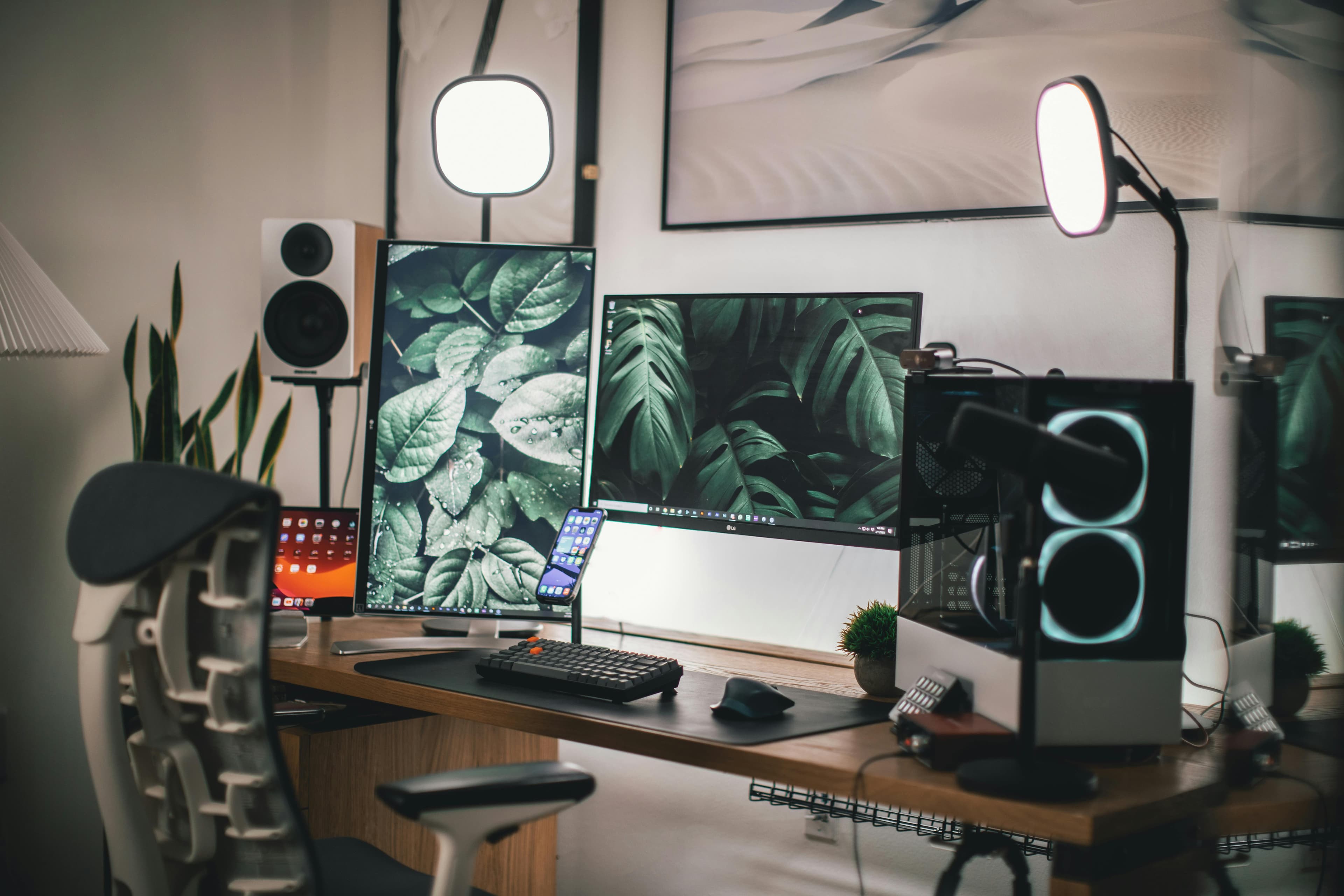
Enhance Your Webcam Setup for Better Video Calls
In today's digital age, video calls have become a staple in both professional and personal communication. Whether you're attending a remote meeting, participating in a virtual conference, or catching up with friends and family, the quality of your video can significantly impact the experience. At Mavyn, we understand the importance of clear and effective communication. Here’s a detailed guide on how to improve your webcam setup for better video call quality.
1. Optimize Your Lighting
Good lighting is crucial for high-quality video calls. Here are some tips to enhance your lighting setup:
- Use Natural Light: Position yourself facing a window or in a place where natural light brightens your face evenly.
- Avoid Backlighting: Make sure light sources are not directly behind you to avoid being silhouetted.
- Use Soft Lighting: If natural light is not available, use soft, diffused lighting to eliminate harsh shadows.
2. Choose the Right Background
A cluttered or distracting background can divert attention away from you. Consider these points:
- Keep It Simple: Use a neutral, non-distracting background. A plain wall, a tidy room, or a backdrop curtain are good choices.
- Minimize Distractions: Ensure there are no moving objects or people in the background during your call.
3. Position Your Webcam Correctly
The angle of your webcam affects how you appear during a video call. Follow these guidelines to position your webcam:
- Eye Level Position: Place your webcam at or just above eye level. Use books or a webcam stand to adjust the height if necessary.
- Distance: Sit at least an arm’s length away from the camera to ensure your face and upper shoulders are visible.
4. Improve Your Audio Quality
Audio is just as important as video. Enhance your audio setup with these tips:
- Use a Dedicated Microphone: Built-in microphones often capture a lot of background noise. Consider using an external microphone for clearer audio.
- Test Your Audio: Before starting a call, test your microphone settings and adjust the input level to avoid distortion.
5. Upgrade Your Webcam
If you're using an older or low-quality webcam, upgrading to a newer model can dramatically improve your video quality. Look for webcams with:
- High Resolution: Choose a webcam with at least 1080p resolution for sharp video.
- Autofocus: A webcam with autofocus adjusts to keep your image clear as you move.
- Low-Light Performance: Some webcams perform better in low-light conditions, which can be beneficial if your environment is not well-lit.
6. Use Software Enhancements
Many video conferencing apps offer built-in settings to improve video quality:
- Background Blur: Use background blur features to keep the focus on you.
- Touch Up Features: Some apps offer touch-up features to smooth out your appearance slightly.
7. Regularly Update Your Software
Ensure that your video conferencing software is up to date. Updates can fix bugs, improve performance, and add new features that enhance video quality.
Conclusion
Improving your webcam setup can lead to more professional and clearer video calls. By adjusting your lighting, choosing an appropriate background, positioning your webcam correctly, enhancing audio quality, and considering a webcam upgrade, you can ensure that you come across as professionally as possible in your video communications.
For personalized advice on setting up your webcam or any other tech support, chat with Mavyn GPT or connect with one of our human experts today. We’re here to help you make the most out of your digital communication tools!