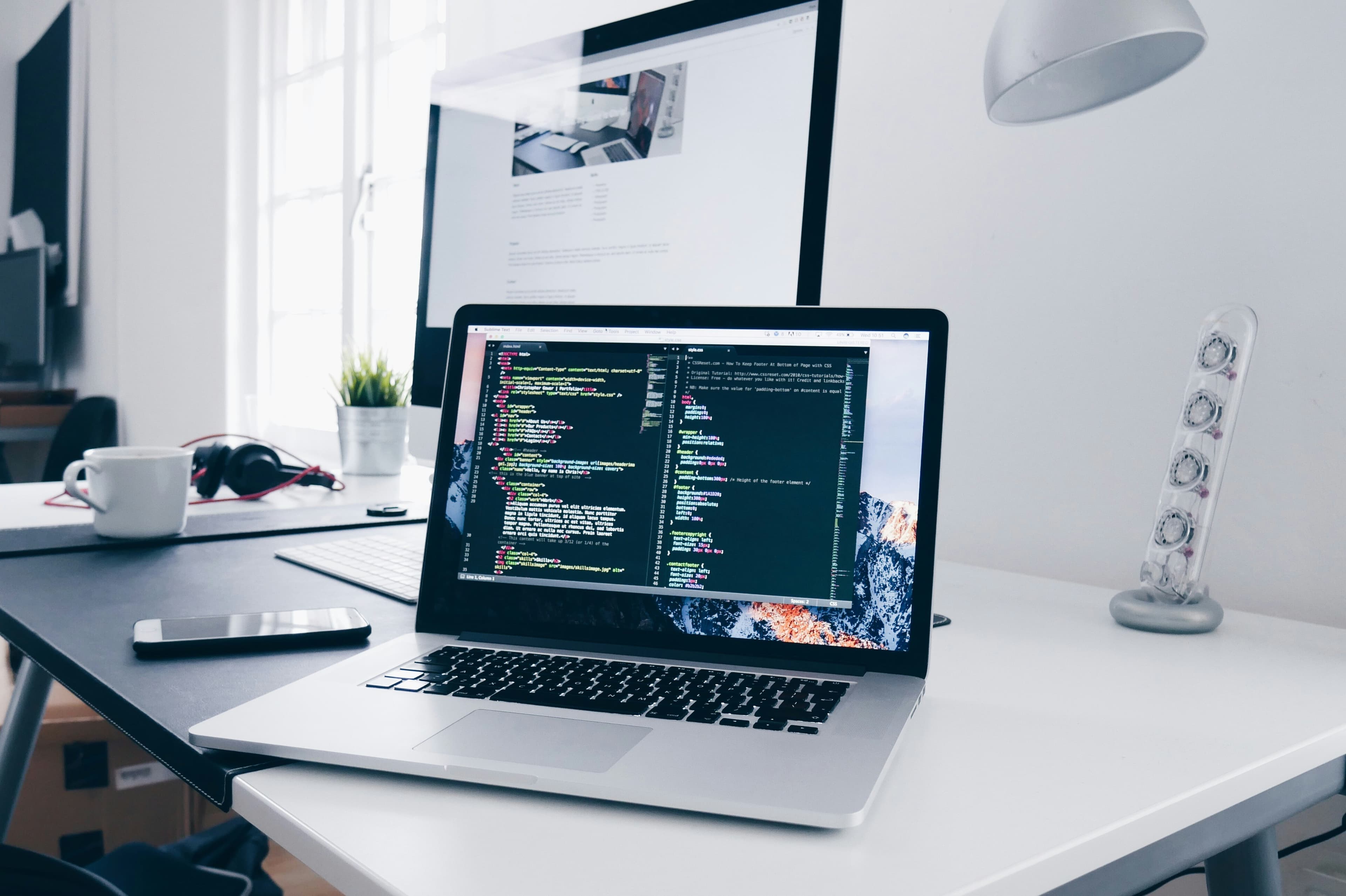
Enhance Laptop Cooling for Optimal Performance
Keeping your laptop cool is crucial for maintaining optimal performance and extending its lifespan. Overheating can lead to reduced efficiency, system crashes, and even permanent damage to components. Whether you're a gamer, a professional, or just a casual user, ensuring your laptop has proper cooling can make a significant difference in its functionality and durability. Here are practical tips and strategies to enhance your laptop's cooling.
1. Keep Your Laptop Clean
Dust and debris can block your laptop's air vents and insulate heat-producing components, making it harder for your laptop to cool down.
Tips for Cleaning:
- Use Compressed Air: Blow dust out of the air vents regularly. Aim the air away from the vent to avoid pushing the dust further inside.
- Clean the Surface: Wipe the surface of your laptop with a soft, slightly damp cloth to remove dust.
2. Use a Cooling Pad
Cooling pads are an effective and affordable way to provide additional cooling. They typically come with one or more fans that help direct air into your laptop’s vents.
Examples of Cooling Pads:
- Tree New Bee Cooling Pad: Features four fans and adjustable height settings.
- Havit HV-F2056: Slim, portable, and equipped with three fans.
3. Optimize Your Settings
Adjusting your laptop’s settings can reduce heat generation from the hardware.
Settings to Adjust:
- Power Settings: Set your laptop to a power-saving mode when not performing intensive tasks.
- Brightness: Lowering the screen brightness can reduce power consumption and heat.
4. Use Your Laptop on a Hard, Flat Surface
Using your laptop on a soft surface like a bed or a couch can block its air vents. Always use it on a hard, flat surface or consider a lap desk.
Benefits of a Hard Surface:
- Ensures unobstructed air flow.
- Prevents heat build-up under the device.
5. Upgrade Your Hardware
If your laptop is older, upgrading components like the SSD or RAM can decrease heat production, as newer components are often more efficient.
Upgrading Tips:
- SSD over HDD: SSDs generate less heat than HDDs.
- Higher Quality RAM: Look for energy-efficient RAM options.
6. Regularly Update Your Software
Keeping your operating system and drivers up to date can improve your laptop’s efficiency and potentially reduce heat generation.
How to Update:
- Check for Updates: Regularly check your operating system’s update tool.
- Driver Updates: Use official websites or tools to find the latest drivers.
7. Consider Professional Help
If you're not comfortable performing maintenance tasks yourself, or if your laptop continues to overheat despite following these tips, it might be time to consult a professional.
How Mavyn Can Help:
At Mavyn, we offer both AI and human expert services to assist you. Chat with Mavyn GPT for immediate guidance or connect with one of our human experts for more personalized assistance.
Maintaining optimal cooling for your laptop not only enhances its performance but also prolongs its life. By following these tips, you can ensure that your laptop runs efficiently and stays cool under any load.
Remember, if you need further assistance, Mavyn is here to help with both AI and human expert advice tailored to your needs.