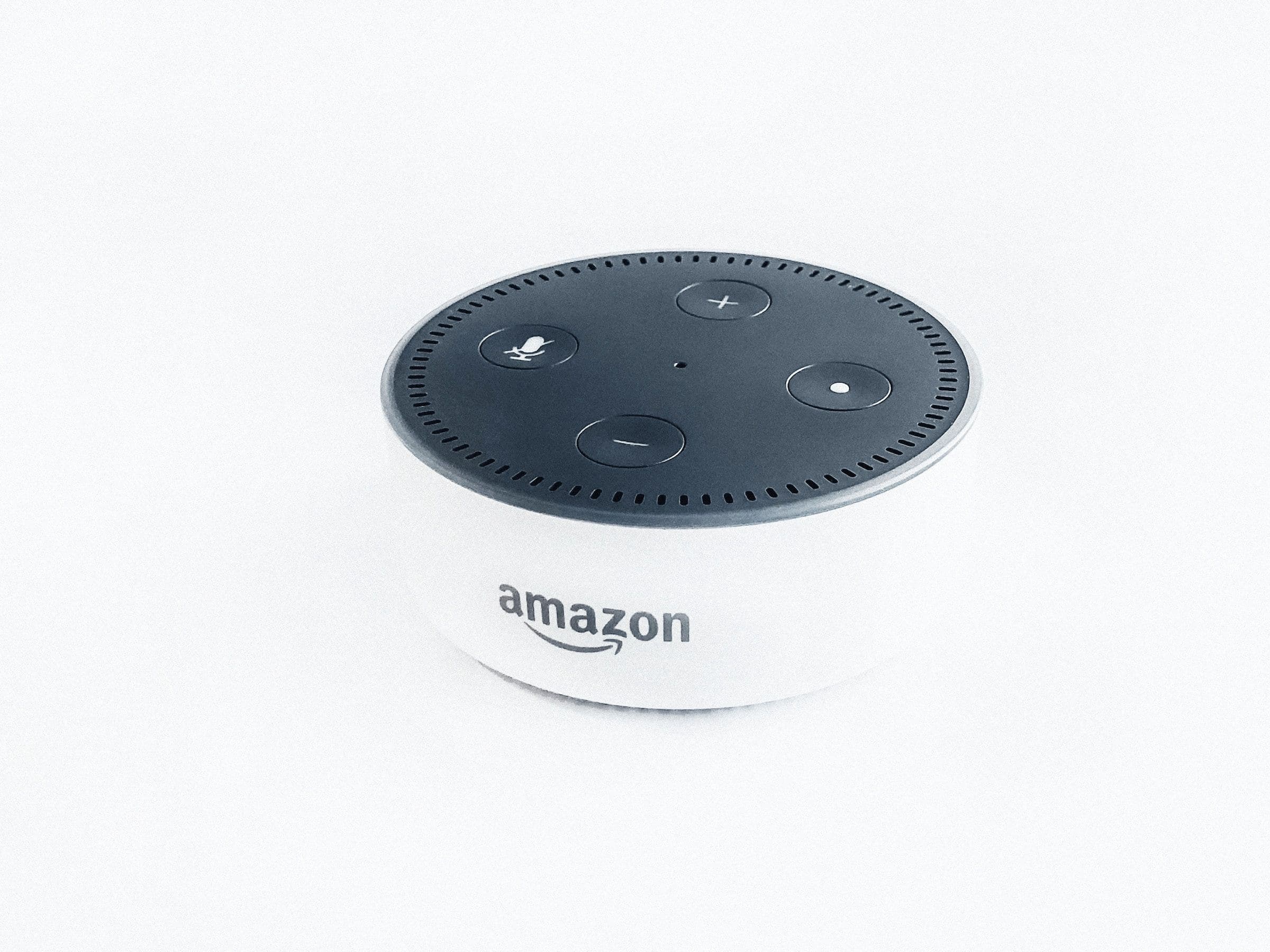
Easily Change the Network for Your Alexa Echo Device
If you've recently changed your Wi-Fi network, moved to a new location, or simply want to connect your Alexa Echo device to a different network, this guide will help you do that seamlessly. Follow these simple steps to change the network for your Alexa Echo device.
Step 1: Prepare Your Alexa Echo Device
Before you begin, ensure that your Alexa Echo device is plugged in and powered on. The light ring on the device should be displaying an orange light, indicating that it is in setup mode. If it isn't, press and hold the Action button (the button with a dot) for 6-7 seconds until the light ring turns orange.
Step 2: Open the Alexa App on Your Smartphone or Tablet
To change the network settings for your Echo device, you'll need to use the Alexa app. If you don't already have the app installed, you can download it for free from the Apple App Store or Google Play Store.
Step 3: Access Your Device Settings
- Open the Alexa app and sign in with your Amazon account.
- Tap on the "Devices" tab found at the bottom right corner of the app.
- Select the "Echo & Alexa" icon at the top left corner of the screen.
- From the list of devices, choose the Echo device you want to change the network for.
Step 4: Change the Wi-Fi Network
- In your Echo device settings, tap on "Wi-Fi Network."
- If your device is not in setup mode (orange light ring), follow the on-screen instructions to enter setup mode.
- Once your device is in setup mode, tap on "Continue" in the app.
- The app will now display a list of available Wi-Fi networks. Select the new network you want to connect your Echo device to.
- Enter the network password and tap on "Connect."
Step 5: Confirm Successful Connection
Once the Echo device is connected to the new network, the light ring will turn off, and the app will display a message confirming the successful connection. You can now use your Echo device with the new Wi-Fi network.
Troubleshooting
If you encounter any issues while trying to change the network for your Echo device, try these troubleshooting tips:
- Make sure your device is within range of the new Wi-Fi network.
- Double-check that you have entered the correct Wi-Fi password.
- Ensure that the new Wi-Fi network is a 2.4 GHz or 5 GHz network, as Echo devices are not compatible with other frequency bands.
- Restart your Echo device and try the setup process again.
By following these steps, you can easily change the network for your Alexa Echo device and maintain seamless connectivity in your smart home setup.